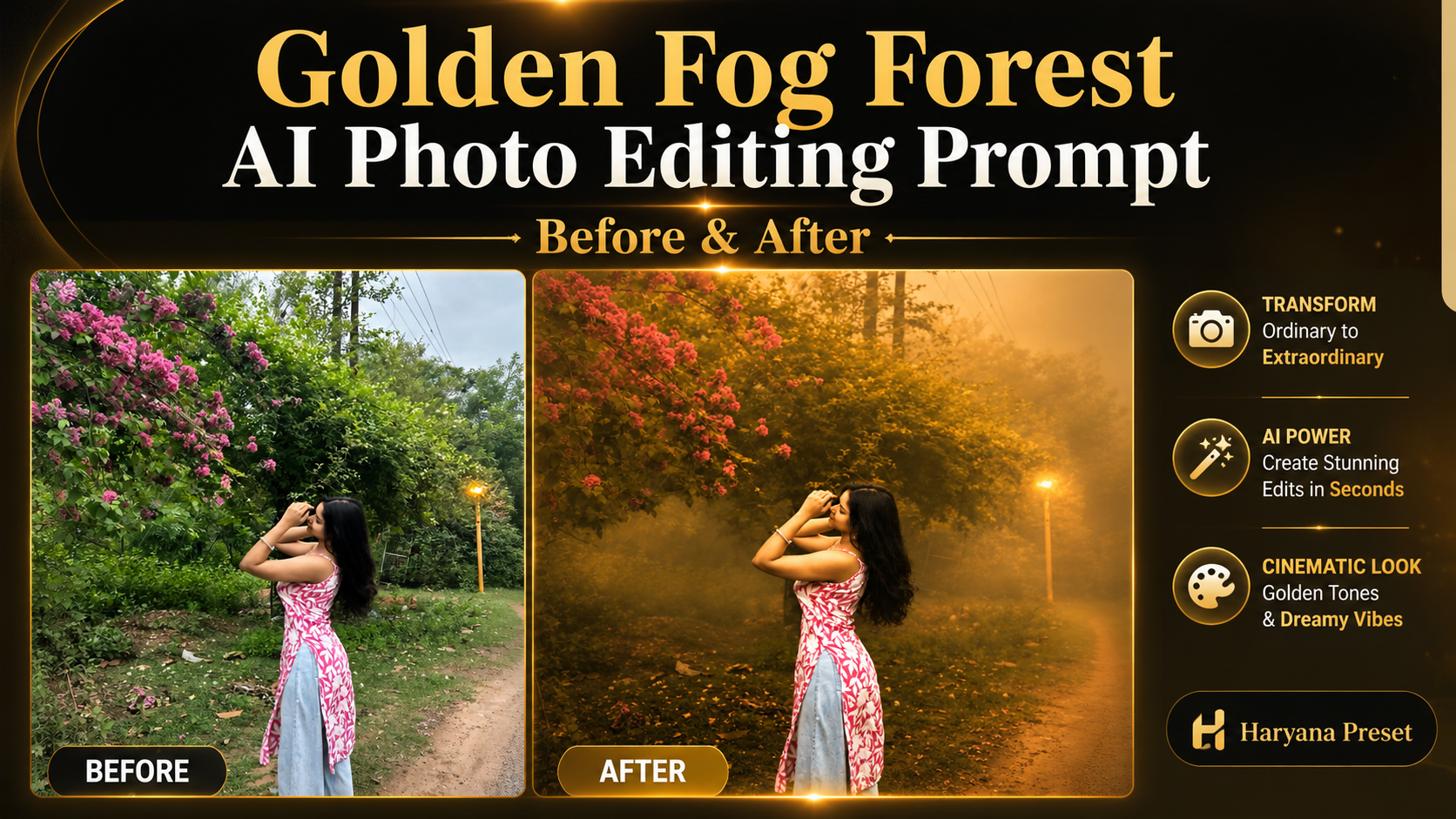
If you want to give your outdoor photos a cinematic, atmospheric look without complex software, this article is for you. Here at Haryana Preset, we are sharing a ready-to-use Golden Fog Forest AI Photo Editing Prompt for ChatGPT that adds thick golden fog, warm amber lighting, and rich forest colour grading to your photos — while keeping your original subject, outfit, pose, and background exactly as they are. You will find the complete prompt, a before-and-after comparison, step-by-step instructions, editing tips, common mistakes, and answers to frequently asked questions.
Before and After Golden Fog Forest AI Editing
Before: Original Photo
The original photo shows an outdoor portrait taken in natural daylight. The person is standing on a road surrounded by plants, trees, flowers, and an electric pole in the background. The lighting is natural and even, the colours are realistic, and the background is clearly visible with good depth.
After: AI-Edited Golden Fog Result
The AI-edited version transforms the entire mood of the same photo. A thick layer of golden fog now spreads across the scene from the foreground all the way to the background. The vegetation has taken on a deeper, moodier green tone with warm golden highlights. Distant background elements like trees and the road fade softly into the atmospheric mist, creating a strong sense of depth. The lighting feels cinematic — warm amber tones replace the flat daylight. Despite all these atmospheric changes, the person’s face, hairstyle, outfit, pose, and position remain unchanged. The flowers, road, electric pole, and surrounding plants are all still present in the composition.
This image was enhanced using an AI photo-editing prompt. The original subject, outfit, pose, background objects, and composition were preserved while golden fog and cinematic colour grading were applied.
What Is the Golden Fog Forest Editing Style?
The Golden Fog Forest style is a cinematic photo-editing technique that blends warm golden tones with thick atmospheric fog to create a moody, immersive outdoor look. It draws inspiration from early-morning forest scenes where natural mist catches sunlight and creates a soft, dreamy glow through the trees.
This style works particularly well for outdoor portraits, nature photography, and travel content. The combination of dense fog, rich emerald-green foliage, and amber lighting gives photos a premium, filmic quality that stands out on Instagram and other visual platforms.
Unlike heavy retouching or background replacement, this style focuses entirely on colour grading and atmosphere. The original scene stays intact — only the mood and lighting feel change.
Key Features of the Final AI-Edited Result
Here is what makes the Golden Fog Forest AI-edited result visually distinctive:
- Dense golden fog — Thick, realistic mist spreads naturally across the entire scene, from the front to the far background.
- Warm amber lighting — A soft golden glow replaces flat daylight, making the scene feel warm and cinematic.
- Moody green foliage — Plants and trees shift to a deeper, richer green that contrasts beautifully with the golden tones.
- Cinematic atmospheric depth — Background elements fade gradually into the fog, creating a strong three-dimensional feel.
- Natural subject clarity — The main person stays sharp and well-defined even with fog around them.
- Preserved original composition — No cropping, zooming, or repositioning. The framing stays exactly the same.
- Soft background visibility — Distant details are still visible but feel layered and immersive, not completely hidden.
- Premium forest colour grading — The overall colour palette feels like a professional DSLR edit rather than a filter.
Golden Fog Forest AI Photo Editing Prompt
Copy the full prompt below and paste it into ChatGPT along with your original photo:
Chatgpt Ai Prompt
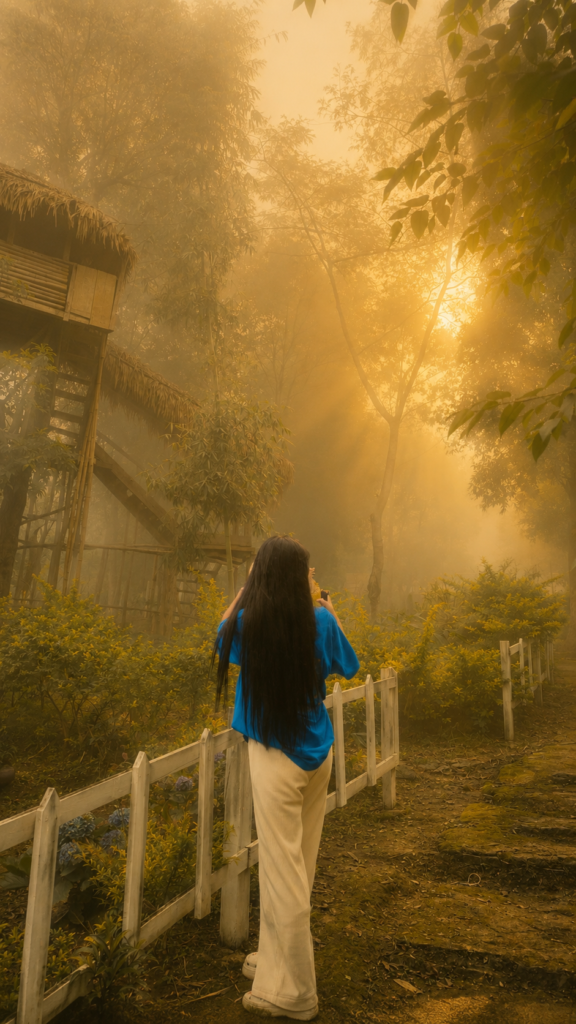
Transform this image while preserving the ORIGINAL PHOTO exactly.

========================
STRICT IDENTITY LOCK
========================
Preserve the person exactly as shown in the reference image.
Do NOT change the face, hairstyle, skin tone, facial features, expression, body shape, age, clothing, footwear, accessories, pose, hand position, or body proportions.

========================
STRICT COMPOSITION LOCK
========================
Keep the original composition exactly unchanged.
Do NOT crop.
Do NOT zoom.
Do NOT rotate.
Do NOT change the camera angle.
Do NOT change the focal length.
Do NOT change the perspective.
Keep the subject in the exact same position and scale.

========================
FOG + COLOR GRADING ONLY
========================
Apply ONLY premium Golden Forest cinematic color grading while preserving the original image exactly.

Add very thick, dense, natural-looking forest fog covering the entire scene.
The fog must be clearly visible from foreground to background with realistic atmospheric depth.
Reduce distant visibility naturally while keeping the subject sharp.
Create soft volumetric mist between the trees and along the road.
Fill the entire environment with realistic fog without hiding the subject.

Apply rich emerald green forest tones, warm golden highlights, soft amber glow, natural earthy colors, balanced HDR contrast, ultra-realistic lighting, DSLR-quality dynamic range, crisp textures, and premium cinematic color grading.

Enhance clarity, sharpness, and image quality while keeping every detail of the original image intact.
Upscale to ultra-realistic 4K quality.

========================
NEGATIVE PROMPT
========================
Do NOT add, remove, replace, or modify any object, person, vehicle, road, building, tree, sky, fence, background element, or composition.
Do NOT add extra trees, flowers, leaves, birds, light rays, particles, or any new objects.
Do NOT change the face.
Do NOT beautify the face.
Do NOT change the hairstyle.
Do NOT change the outfit.
Do NOT change the pose.
Do NOT change the camera angle.
Do NOT change the background layout.
Only apply dense realistic fog, premium Golden Forest color grading, HDR enhancement, and 4K quality while preserving everything else exactly as in the original image.
How to Use This Prompt in ChatGPT
Follow these steps on your phone or desktop:
- Open ChatGPT — Use the mobile app or visit chat.openai.com. Make sure you are using a plan that supports image uploads.
- Upload the original photo — Tap the attachment icon and select your outdoor portrait from your gallery.
- Paste the prompt — Copy the full prompt from above and paste it into the message box.
- Generate the result — Send the message and wait for ChatGPT to process the image.
- Check carefully — Compare the result with your original. Look at the face, outfit, pose, hands, and all background objects.
- Request a correction if needed — If the face, outfit, or any object has changed, type a follow-up message asking ChatGPT to redo the edit while strictly preserving those elements.
- Save only the final version — Once you are satisfied with the result, download and save it.
Best Photos for This Editing Style
Not every photo will give the same result. Here is what works best:
- Outdoor locations — Gardens, roadsides, fields, parks, and forest paths work beautifully.
- Natural daylight — Photos taken in soft morning or evening light respond better to golden colour grading than harsh midday shots.
- Greenery in the background — Trees, bushes, and plants in the background make the fog effect look far more natural.
- Clear subject position — The person should be clearly visible and not too close to the frame edges.
- Good image resolution — A sharp, well-lit photo gives the AI more detail to work with and produces cleaner results.
- Neutral or earthy clothing colours — Whites, browns, greens, and muted tones blend well with golden-fog colour grading.
- Open background depth — A photo with visible distance behind the subject allows the fog to show its full layered effect.
Editing Tips for Better Results
These small adjustments can make a noticeable difference in your final result:
- Upload the clearest version of your photo — Avoid blurry, dark, or heavily filtered images.
- Always include the identity lock section — This is the most important part. Without it, the face and outfit may change.
- Always include the composition lock section — This prevents unwanted cropping or zooming.
- State “fog and colour grading only” clearly — This keeps ChatGPT focused on atmosphere rather than scene changes.
- Keep the subject visible through the fog — The fog should wrap around the person, not cover their face entirely.
- Avoid requesting artificial light rays — The negative prompt already blocks this, but do not add light-ray requests yourself as they can make the edit look fake.
- Compare side by side before saving — Always place the original and edited photos next to each other to spot any unexpected changes.
- Regenerate when hands or details look wrong — Distorted fingers or changed objects are common in AI edits. Simply ask ChatGPT to regenerate with stricter preservation.
Common Mistakes to Avoid
If your result is not matching what you expected, you may be making one of these common mistakes:
- Using a vague one-line prompt — A short prompt like “add golden fog” gives the AI too much freedom. The detailed prompt from Haryana Preset is specifically structured to prevent unwanted changes.
- Allowing too much fog over the face — The fog should enhance depth, not hide the subject. If the face is disappearing into the mist, ask for a correction.
- Accidentally replacing the background — Without a strict original-elements lock, ChatGPT may swap out trees, roads, or objects. Always include the lock section.
- Ignoring outfit and body changes — AI tools sometimes subtly alter clothing colour or body shape. Check this carefully before saving.
- Overusing orange colour tones — Golden grading works best when warm tones are balanced with natural greens. Pure orange results look artificial.
- Ignoring distorted hands or objects — Hands are one of the most common problem areas in AI-edited images. If fingers look unnatural, regenerate.
- Publishing without a final check — Always compare the edited result with your original before sharing. This protects both your content quality and your audience’s trust.
Why Show a Before-and-After Comparison?
A before-and-after comparison does two things at once. First, it shows readers exactly what the prompt changes — the fog, the mood, the colour grading, and the atmospheric depth. Second, it shows what the prompt does not change — the person, the outfit, the pose, the road, the plants, the flowers, and the electric pole.
This matters because many readers worry that AI editing will alter their subject or change their background completely. Seeing both images together makes it clear that the transformation is atmospheric, not structural. It builds trust and gives readers a realistic expectation of what the prompt can and cannot do.
Why Use Haryana Preset?
Haryana Preset is a dedicated resource for photo editors, AI creators, and photography enthusiasts. The website regularly publishes AI photo-editing prompts, Lightroom presets, step-by-step editing tutorials, and before-and-after examples that show real results.
The goal of Haryana Preset is simple — give you practical tools and prompts that actually work, explained in straightforward language. Whether you are editing on your phone or desktop, you will find resources here that are easy to follow and ready to use.
Final Thoughts
The Golden Fog Forest AI Photo Editing Prompt is one of the most effective ways to give your outdoor portraits a cinematic, atmospheric quality without using heavy editing software. With the right photo and the correct prompt, ChatGPT can add thick golden mist, warm amber lighting, and deep forest colour grading while keeping your original subject and scene fully intact.
Try it on your favourite outdoor photo, compare the result carefully, and regenerate if anything looks off. Haryana Preset will continue sharing more prompts and editing guides like this one — so bookmark the site and check back regularly.
Frequently Asked Questions
1. Was this image completely generated by AI?
No. This is an AI-edited image, not an AI-generated one. The original photo — including the person, outfit, pose, road, plants, flowers, and electric pole — was taken as a real photograph. The AI only applied golden fog and cinematic colour grading on top of the original.
2. Was the original person changed in the edited result?
The prompt is specifically designed to preserve the person exactly as they appear in the original photo. The face, hairstyle, skin tone, clothing, and pose should remain unchanged. If any change occurs, it is a generation error, and you can ask ChatGPT to regenerate with stricter preservation.
3. Can I use this prompt in ChatGPT on mobile?
Yes. Open the ChatGPT app on your phone, upload your photo using the attachment icon, paste the full prompt, and send. The process works the same on both Android and iPhone.
4. Why does my result look different from the example?
Results can vary depending on your original photo’s lighting, resolution, background, and composition. Photos with clear subjects, good natural light, and green backgrounds tend to produce results closest to the example. Low-resolution or heavily filtered photos may give less accurate results.
5. Can I reduce or increase the golden fog?
Yes. You can modify the prompt slightly by changing “extremely thick, dense” fog to “moderate” or “light” fog. Alternatively, after generating the result, ask ChatGPT to adjust the fog density in a follow-up message.
6. Can this prompt be used with other outdoor photos?
Absolutely. This prompt works well on a wide range of outdoor portraits and nature photos — not just the specific example shown here. Gardens, parks, forest paths, roadsides, and green open spaces are all good candidates. Indoor or studio photos may not produce the same atmospheric effect.